
You are using an out of date browser. It may not display this or other websites correctly.
You should upgrade or use an alternative browser.
You should upgrade or use an alternative browser.
Sell Full Phantom Bot code for sale
- Thread starter L2Babylon
- Start date
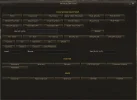
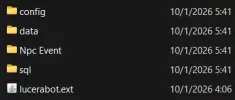
There are clearly issues with combat archers moving forward to targets and do not respect distance all of them follow same paths and paterns that clearly can be identified as bots. There is no point to buy something like that when players can from first view that they are bots.

Because you can configure this through a file you customize, I'm giving you a simple file to look at.
You can set any route you want and as many routes as you want them to follow.
With archers, I set it via code to make the attack at normal range.
You have full support at all times and updates are made daily and whatever problem you have, we fix it.
You can set any route you want and as many routes as you want them to follow.
With archers, I set it via code to make the attack at normal range.
You have full support at all times and updates are made daily and whatever problem you have, we fix it.
# Phantom town walking routes
# Format: x;y;z (one point per line)
# Put points from your city (e.g. Giran) here, by going in-game with //loc
# and writing the coordinates.
# Giran
# walk in Giran
82945;148700;-3408
82207;148406;-3456
81910;148310;-3456
81575;147561;-3464
81477;145593;-3536
81098;145537;-3536
81063;145799;-3536
79871;145833;-3496
79693;145545;-3488
80024;145179;-3496
80359;145141;-3536
81138;145532;-3536
81512;145562;-3536
81572;147512;-3464
82649;147883;-3456
83400;148315;-3408
82820;149237;-3456
# Dion
# walk in Dion
15671;143060;-2704
16452;143923;-2944
17115;145125;-3040
18006;145800;-3120
18379;145115;-3072
18440;144857;-3088
18052;144554;-3040
18680;144933;-3120
19255;145704;-3104
19278;146118;-3064
19122;144078;-3088
19939;144184;-3088
20446;144658;-3088
20771;144755;-3064
20953;144537;-3064
20829;144737;-3064
20279;144632;-3088
19802;144134;-3064
19175;144031;-3088
19280;143242;-3056
19685;143139;-3024
19140;143331;-3056
18692;145400;-3136
17781;145712;-3104
16948;144828;-3008
16409;143804;-2928
# Aden
# Gludio
# Goddard
# Rune
# Oren
# Gludin
# Hunter
# Heine
# Talking Island
# Dwarven
# Orc
# Dark Elven
# Elven
# Format: x;y;z (one point per line)
# Put points from your city (e.g. Giran) here, by going in-game with //loc
# and writing the coordinates.
# Giran
# walk in Giran
82945;148700;-3408
82207;148406;-3456
81910;148310;-3456
81575;147561;-3464
81477;145593;-3536
81098;145537;-3536
81063;145799;-3536
79871;145833;-3496
79693;145545;-3488
80024;145179;-3496
80359;145141;-3536
81138;145532;-3536
81512;145562;-3536
81572;147512;-3464
82649;147883;-3456
83400;148315;-3408
82820;149237;-3456
# Dion
# walk in Dion
15671;143060;-2704
16452;143923;-2944
17115;145125;-3040
18006;145800;-3120
18379;145115;-3072
18440;144857;-3088
18052;144554;-3040
18680;144933;-3120
19255;145704;-3104
19278;146118;-3064
19122;144078;-3088
19939;144184;-3088
20446;144658;-3088
20771;144755;-3064
20953;144537;-3064
20829;144737;-3064
20279;144632;-3088
19802;144134;-3064
19175;144031;-3088
19280;143242;-3056
19685;143139;-3024
19140;143331;-3056
18692;145400;-3136
17781;145712;-3104
16948;144828;-3008
16409;143804;-2928
# Aden
# Gludio
# Goddard
# Rune
# Oren
# Gludin
# Hunter
# Heine
# Talking Island
# Dwarven
# Orc
# Dark Elven
# Elven
I am not talking about movements in town but selecting targets and how they move to attack all have same targets and do same movementBecause you can configure this through a file you customize, I'm giving you a simple file to look at.
You can set any route you want and as many routes as you want them to follow.
With archers, I set it via code to make the attack at normal range.
You have full support at all times and updates are made daily and whatever problem you have, we fix it.
# Phantom town walking routes
# Format: x;y;z (one point per line)
# Put points from your city (e.g. Giran) here, by going in-game with //loc
# and writing the coordinates.
# Giran
# walk in Giran
82945;148700;-3408
82207;148406;-3456
81910;148310;-3456
81575;147561;-3464
81477;145593;-3536
81098;145537;-3536
81063;145799;-3536
79871;145833;-3496
79693;145545;-3488
80024;145179;-3496
80359;145141;-3536
81138;145532;-3536
81512;145562;-3536
81572;147512;-3464
82649;147883;-3456
83400;148315;-3408
82820;149237;-3456
# Dion
# walk in Dion
15671;143060;-2704
16452;143923;-2944
17115;145125;-3040
18006;145800;-3120
18379;145115;-3072
18440;144857;-3088
18052;144554;-3040
18680;144933;-3120
19255;145704;-3104
19278;146118;-3064
19122;144078;-3088
19939;144184;-3088
20446;144658;-3088
20771;144755;-3064
20953;144537;-3064
20829;144737;-3064
20279;144632;-3088
19802;144134;-3064
19175;144031;-3088
19280;143242;-3056
19685;143139;-3024
19140;143331;-3056
18692;145400;-3136
17781;145712;-3104
16948;144828;-3008
16409;143804;-2928
# Aden
# Gludio
# Goddard
# Rune
# Oren
# Gludin
# Hunter
# Heine
# Talking Island
# Dwarven
# Orc
# Dark Elven
# Elven

так месяц назад другой человек продавал этих же ботов... скам?
Вот этот перец продавал https://lucera2.com/members/goldboy.7689/
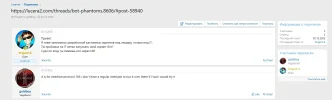
Вот этот перец продавал https://lucera2.com/members/goldboy.7689/
as I wrote I am the real one now and stop this game of mercy I have also spoken to deazer.
I am sincerely sorry for this whining.
If anyone is interested, I have a server open for testing, please don't bother me with childish things.
You said it a long time ago, but now I'm the one with the real name and account that you said I don't have access to lucera's files and it's very clear.
I am sincerely sorry for this whining.
If anyone is interested, I have a server open for testing, please don't bother me with childish things.
You said it a long time ago, but now I'm the one with the real name and account that you said I don't have access to lucera's files and it's very clear.
Last edited:

I know him, he is not a scam, he is indeed trustworthy @Project-X
Да теперь понятно)I explained it to you. As I said before, I talked to Deazer and told him I would do it with my Real account and I posted it again.
Why did they say I don't have access to Lucera files?
Удачи в продажах и развитие
Какая цена за бот систему ?
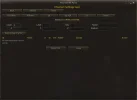
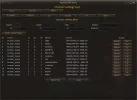
when you create a sale topic I think you have to add the price too and also what you have made are clearly bots following same attacking patterns targets even the combat looks bad archers making step forward to targets so I am interested to see what price you asking while if you use that on live server besides cpu issues that maybe cause players will clearly understand they play with bots. If you want to make it correctly at least make it player like then it will have value.
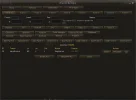
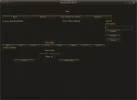
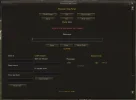
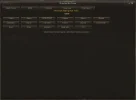
New Update: 20/1/2026
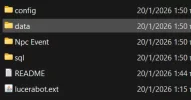
New Panel Farm Spot:
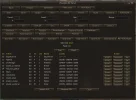
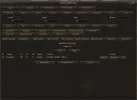
New Panel Farm Spot:
PHANTOM BOT SYSTEM (Lucera Classic Interlude – Protocol 166)
===========================================================
1) SERVER INSTALLATION
----------------------
1. Drop the .ext.jar into your server’s ext folder (where your loader scans *.ext.jar), e.g.:
- gameserver/ext/
2. Start the gameserver.
3. On startup you should see a log line similar to:
- [PhantomPanel] Loaded ...
2) GM COMMAND
-------------
Open the Phantom Bot panel in-game:
- //phantombot_panel
3) IN-GAME USAGE (PRIVATE MESSAGE / TELL)
-----------------------------------------
Private (TELL) with config
You can send PM lines in two ways:
A) Fixed message
- Format: NickName Hi all
B) Random from config
- Format: NickName
- The system will pick a random phrase from config/data files.
4) AUTO RANDOM CHAT (FARM BOT AI)
--------------------------------
Phantom farm chat reads phrases from:
- data/phantoms/phrases_en.html
- data/phantoms/farm_phrases_en.html
You can add your own phrases there.
There is also the folder:
- data/phantoms/phantom_chat
Where you can use types:
- type="ALL" -> local chat (white)
- type="SHOUT" -> shout
- type="TELL" -> private message
Default config (ready to use):
farm_chat_enabled = true
farm_chat_min_delay = 30
farm_chat_max_delay = 90
farm_chat_shout_chance = 30
5) PHANTOM PVE REACTION (AUTO “TALK BACK” WHEN ATTACKED)
--------------------------------------------------------
What it does
When a real player:
- has the phantom targeted,
- hits it (attack or skill),
- is close (<= 1000 range),
then the farm bot automatically talks to the attacker:
- either as PM (TELL) (if config says so),
- or as ALL chat (white).
How to test
Enter the game, go near farm bots, hit 1–2 of them -> they respond using lines from SpeekPvE_en.
Level-based categories
The responses are chosen by phantom level:
- Lv 1–19 -> NG / beginner / cheap help
- Lv 20–39 -> D-grade / first materials
- Lv 40–51 -> C-grade
- Lv 52–60 -> C -> B
- Lv 61–74 -> B/A farm
- Lv 75–80 -> A/S and raids
Also includes: craft/dwarf lines, buy–sell lines, social lines, PM lines, etc.
6) PARTY SYSTEM (PHANTOMS JOIN REAL PARTIES)
--------------------------------------------
Join a phantom into someone’s party
1. A real player (e.g. PlayerX) creates a party and is the leader.
2. GM opens Phantom Bot panel.
3. GM targets PlayerX (party leader).
4. GM targets the phantom (from panel or in-world as usual).
5. Press the panel button -> the phantom joins the target leader’s party.
PartyBot AI
Phantom bots can:
- use skills properly,
- heal party members (healers),
- act as support/dps based on class,
- follow party logic via PartyBot settings.
7) CRAFT SHOP SYSTEM (FULLY FUNCTIONAL)
---------------------------------------
From the phantom panel you can create:
- Sell Fantasy Shop (WTS): inserts items, counts, and prices into a sell list
- Buy Fantasy Shop (WTB): creates a buy list and ensures adena handling
- Crafter Fantasy Shop (CRAFT): creates craft list and shows recipe entries
Basic usage (Sell/Buy)
1. Spawn your phantom (if needed for the store to appear).
2. Go to the Shop section in the panel.
3. Write shop message.
4. Insert:
- Item ID
- Item Count
- Price
5. Click Add item.
6. Click Start Store (stop with Stop Store).
7. Optional: Save Shop to keep it.
Craft shop note
For craft you must create/use a dwarf class:
- Warsmith / Maestro
In Craft:
- Item id = recipe id
- Price per Craft = craft price
Optional: Save Shop
8) PHANTOM GEAR / SKILLS CONFIGURATION
--------------------------------------
Data files path:
- gameserver/data/phantoms
Main configs mentioned:
- mage_offense.properties
- phantom_gear.properties
What they do
A) mage_offense.properties
- Add a player’s class id
- Define skills the class should use (by level/class)
B) phantom_gear.properties
- Define gear sets per:
- class
- level range
- armor / weapon / shield / jewelry / cloak
9) EVENTS
---------
There are 2 events:
- All vs All (DM)
- Team vs Team (TvT)
Open them from the Phantom panel and configure them from:
- Config/teamvsteam/
- Config/eventDM/
10) PHANTOM ENCHANT CONFIGURATION
---------------------------------
Config file:
- Config/phantombot.properties
Example:
# Level ranges
phantom.enchant.low_level_max=70
phantom.enchant.mid_level_max=75
phantom.enchant.high_level_max=80
# Weapon enchant
phantom.enchant.weapon.low=3
phantom.enchant.weapon.mid=3
phantom.enchant.weapon.high=7
phantom.enchant.weapon.above=7
# Armor enchant
phantom.enchant.armor.low=6
phantom.enchant.armor.mid=6
phantom.enchant.armor.high=7
phantom.enchant.armor.above=7
11) PHANTOM PANEL – SAVING & SPAWNING
-------------------------------------
Save phantoms (Storage)
- Create phantoms, target them and press Save Phantom
- They appear inside the Phantom / Storage list for spawning later
Spawn Spots / Bot Points / Farm Locations
The “Creation Points” section has 2 options:
1) Bot Points
- spawns ghosts for beginner zones (level 1 start areas) by class
2) Farm Locations
- create ghosts with class/level/coordinates you choose
- save them into Farm 1 … Farm 9 templates for fast spawn
Tip:
To get coordinates, use:
- //loc
12) PHANTOM MOVEMENT
--------------------
- Target phantom(s)
- Press Move Here
- Click on the ground with your cursor -> phantoms move there
- To stop: press Stop movement
13) SAVE TOWN PHANTOM / TOWN RUN
--------------------------------
Save a phantom to a town
- Target phantom
- Press Save Town Phantom
- It saves the phantom for the town you are currently in
Spawn / Run a town
- Press Run City
- Choose your city button (e.g. Giran)
- The saved phantom appears in Storage and you can spawn it
14) TOWN ROUTES (WALKING PATHS)
------------------------------
Routes file:
- data/phantoms/phantom_town_routes
How to create routes
1. Go in game and use //loc to get coordinates
2. Add points line-by-line in the city section
3. Format:
x;y;z (one point per line)
Example:
# Giran
82945;148700;-3408
82207;148406;-3456
81910;148310;-3456
81575;147561;-3464
15) Farm Spot display names (GM panel)
#
# This file only changes the BUTTON LABELS you see in the Phantom Bot Panel.
# It does NOT change the internal keys (FARM1..FARM18) or your saved templates.
#
# Location:
# gameserver/config/farm_spot_names.properties
#
# Format:
# farm.<number>=<name>
# Examples:
# farm.1=Dion
# farm.10=Hot Springs
#
# If an entry is missing, the panel shows the default label (Farm <number>).
===========================================================
1) SERVER INSTALLATION
----------------------
1. Drop the .ext.jar into your server’s ext folder (where your loader scans *.ext.jar), e.g.:
- gameserver/ext/
2. Start the gameserver.
3. On startup you should see a log line similar to:
- [PhantomPanel] Loaded ...
2) GM COMMAND
-------------
Open the Phantom Bot panel in-game:
- //phantombot_panel
3) IN-GAME USAGE (PRIVATE MESSAGE / TELL)
-----------------------------------------
Private (TELL) with config
You can send PM lines in two ways:
A) Fixed message
- Format: NickName Hi all
B) Random from config
- Format: NickName
- The system will pick a random phrase from config/data files.
4) AUTO RANDOM CHAT (FARM BOT AI)
--------------------------------
Phantom farm chat reads phrases from:
- data/phantoms/phrases_en.html
- data/phantoms/farm_phrases_en.html
You can add your own phrases there.
There is also the folder:
- data/phantoms/phantom_chat
Where you can use types:
- type="ALL" -> local chat (white)
- type="SHOUT" -> shout
- type="TELL" -> private message
Default config (ready to use):
farm_chat_enabled = true
farm_chat_min_delay = 30
farm_chat_max_delay = 90
farm_chat_shout_chance = 30
5) PHANTOM PVE REACTION (AUTO “TALK BACK” WHEN ATTACKED)
--------------------------------------------------------
What it does
When a real player:
- has the phantom targeted,
- hits it (attack or skill),
- is close (<= 1000 range),
then the farm bot automatically talks to the attacker:
- either as PM (TELL) (if config says so),
- or as ALL chat (white).
How to test
Enter the game, go near farm bots, hit 1–2 of them -> they respond using lines from SpeekPvE_en.
Level-based categories
The responses are chosen by phantom level:
- Lv 1–19 -> NG / beginner / cheap help
- Lv 20–39 -> D-grade / first materials
- Lv 40–51 -> C-grade
- Lv 52–60 -> C -> B
- Lv 61–74 -> B/A farm
- Lv 75–80 -> A/S and raids
Also includes: craft/dwarf lines, buy–sell lines, social lines, PM lines, etc.
6) PARTY SYSTEM (PHANTOMS JOIN REAL PARTIES)
--------------------------------------------
Join a phantom into someone’s party
1. A real player (e.g. PlayerX) creates a party and is the leader.
2. GM opens Phantom Bot panel.
3. GM targets PlayerX (party leader).
4. GM targets the phantom (from panel or in-world as usual).
5. Press the panel button -> the phantom joins the target leader’s party.
PartyBot AI
Phantom bots can:
- use skills properly,
- heal party members (healers),
- act as support/dps based on class,
- follow party logic via PartyBot settings.
7) CRAFT SHOP SYSTEM (FULLY FUNCTIONAL)
---------------------------------------
From the phantom panel you can create:
- Sell Fantasy Shop (WTS): inserts items, counts, and prices into a sell list
- Buy Fantasy Shop (WTB): creates a buy list and ensures adena handling
- Crafter Fantasy Shop (CRAFT): creates craft list and shows recipe entries
Basic usage (Sell/Buy)
1. Spawn your phantom (if needed for the store to appear).
2. Go to the Shop section in the panel.
3. Write shop message.
4. Insert:
- Item ID
- Item Count
- Price
5. Click Add item.
6. Click Start Store (stop with Stop Store).
7. Optional: Save Shop to keep it.
Craft shop note
For craft you must create/use a dwarf class:
- Warsmith / Maestro
In Craft:
- Item id = recipe id
- Price per Craft = craft price
Optional: Save Shop
8) PHANTOM GEAR / SKILLS CONFIGURATION
--------------------------------------
Data files path:
- gameserver/data/phantoms
Main configs mentioned:
- mage_offense.properties
- phantom_gear.properties
What they do
A) mage_offense.properties
- Add a player’s class id
- Define skills the class should use (by level/class)
B) phantom_gear.properties
- Define gear sets per:
- class
- level range
- armor / weapon / shield / jewelry / cloak
9) EVENTS
---------
There are 2 events:
- All vs All (DM)
- Team vs Team (TvT)
Open them from the Phantom panel and configure them from:
- Config/teamvsteam/
- Config/eventDM/
10) PHANTOM ENCHANT CONFIGURATION
---------------------------------
Config file:
- Config/phantombot.properties
Example:
# Level ranges
phantom.enchant.low_level_max=70
phantom.enchant.mid_level_max=75
phantom.enchant.high_level_max=80
# Weapon enchant
phantom.enchant.weapon.low=3
phantom.enchant.weapon.mid=3
phantom.enchant.weapon.high=7
phantom.enchant.weapon.above=7
# Armor enchant
phantom.enchant.armor.low=6
phantom.enchant.armor.mid=6
phantom.enchant.armor.high=7
phantom.enchant.armor.above=7
11) PHANTOM PANEL – SAVING & SPAWNING
-------------------------------------
Save phantoms (Storage)
- Create phantoms, target them and press Save Phantom
- They appear inside the Phantom / Storage list for spawning later
Spawn Spots / Bot Points / Farm Locations
The “Creation Points” section has 2 options:
1) Bot Points
- spawns ghosts for beginner zones (level 1 start areas) by class
2) Farm Locations
- create ghosts with class/level/coordinates you choose
- save them into Farm 1 … Farm 9 templates for fast spawn
Tip:
To get coordinates, use:
- //loc
12) PHANTOM MOVEMENT
--------------------
- Target phantom(s)
- Press Move Here
- Click on the ground with your cursor -> phantoms move there
- To stop: press Stop movement
13) SAVE TOWN PHANTOM / TOWN RUN
--------------------------------
Save a phantom to a town
- Target phantom
- Press Save Town Phantom
- It saves the phantom for the town you are currently in
Spawn / Run a town
- Press Run City
- Choose your city button (e.g. Giran)
- The saved phantom appears in Storage and you can spawn it
14) TOWN ROUTES (WALKING PATHS)
------------------------------
Routes file:
- data/phantoms/phantom_town_routes
How to create routes
1. Go in game and use //loc to get coordinates
2. Add points line-by-line in the city section
3. Format:
x;y;z (one point per line)
Example:
# Giran
82945;148700;-3408
82207;148406;-3456
81910;148310;-3456
81575;147561;-3464
15) Farm Spot display names (GM panel)
#
# This file only changes the BUTTON LABELS you see in the Phantom Bot Panel.
# It does NOT change the internal keys (FARM1..FARM18) or your saved templates.
#
# Location:
# gameserver/config/farm_spot_names.properties
#
# Format:
# farm.<number>=<name>
# Examples:
# farm.1=Dion
# farm.10=Hot Springs
#
# If an entry is missing, the panel shows the default label (Farm <number>).
Last edited:

Thats interesting, how my topic was deleted because I didn't have a price for my autofarm system but you are allowed to hide the price in your. Very nice.Send me a personal message so I can tell you.
Now I'm preparing the party with AI for healing and MP.